Desktop companion server
Run the PC side in seconds.
PhonePCTransfer uses a lightweight desktop companion server on your computer to connect your phone to your files, transfers, libraries, and connection settings.
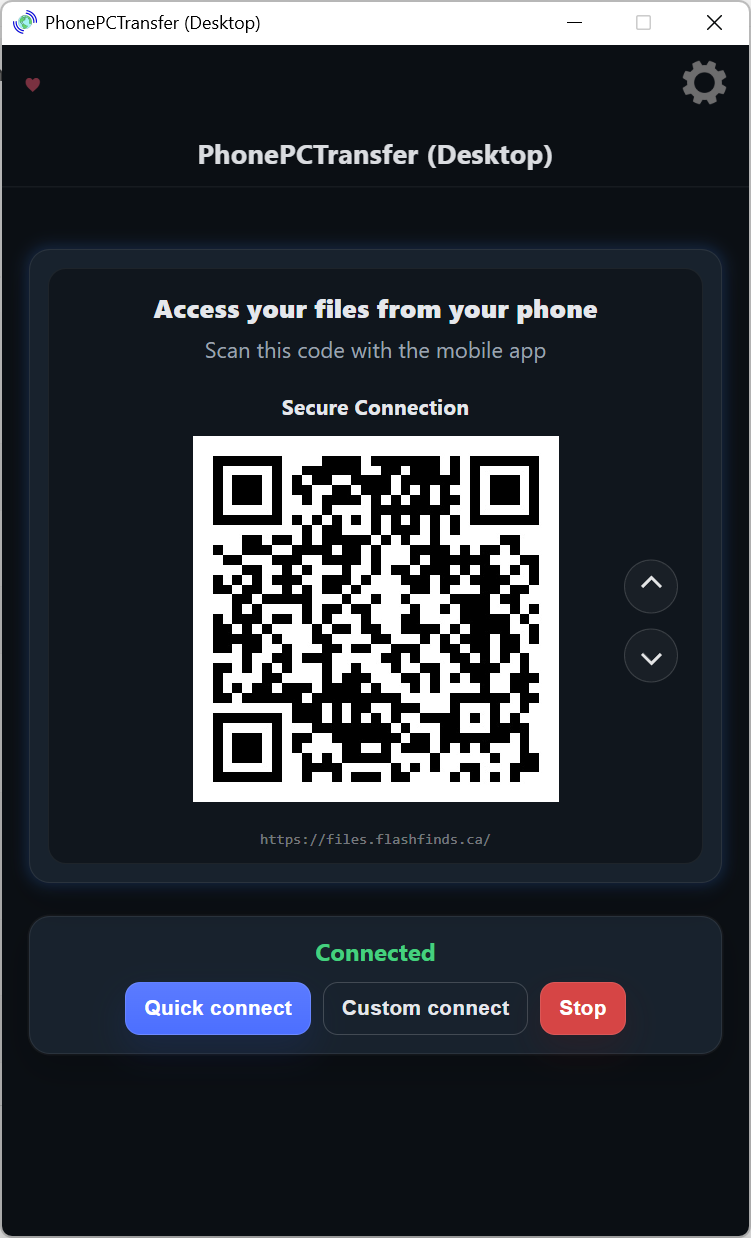
See it in action
Start the server and connect from your phone
The desktop companion server shows a QR code, keeps track of the current connection, and lets you switch between quick local access and custom remote connection modes.
- QR connect lets your phone get in instantly without typing long addresses.
- Quick connect is the fast local option for getting started right away.
- Custom connect is there when you want your own remote connection setup.
- Stop cleanly shuts down the active server session.
Desktop control center
Manage access, security, recovery, and troubleshooting from one place
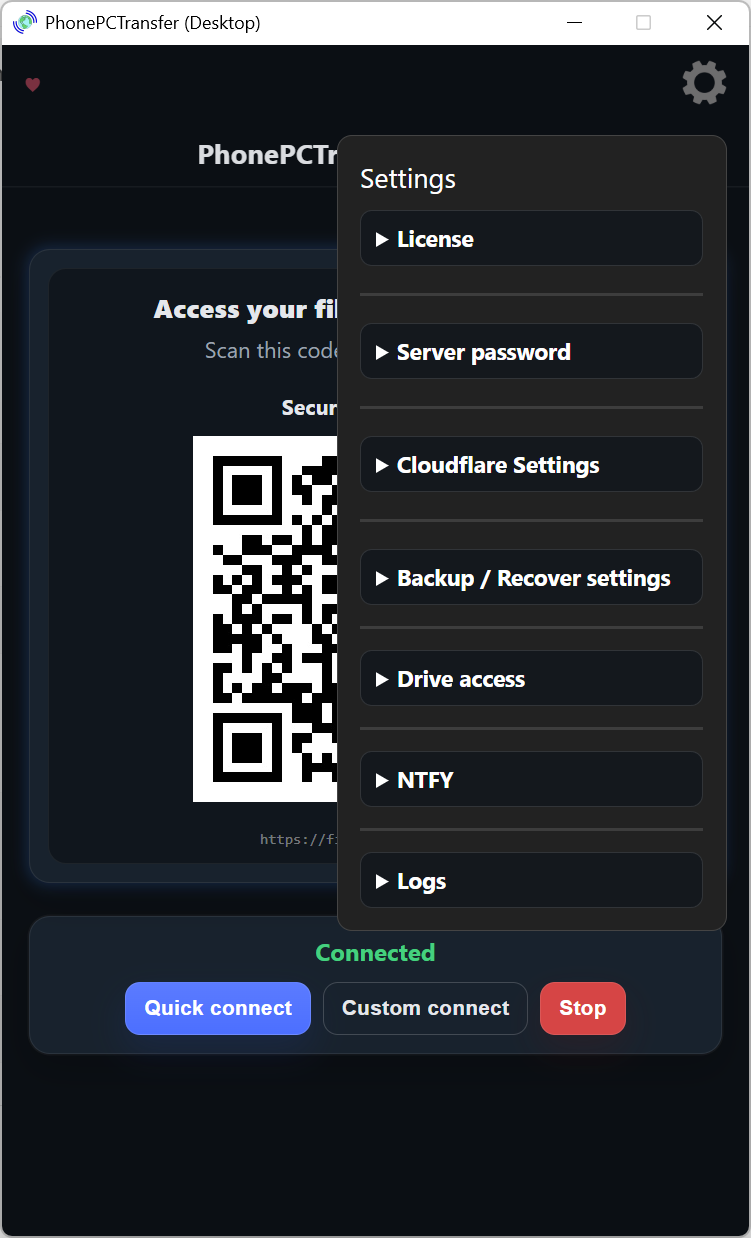
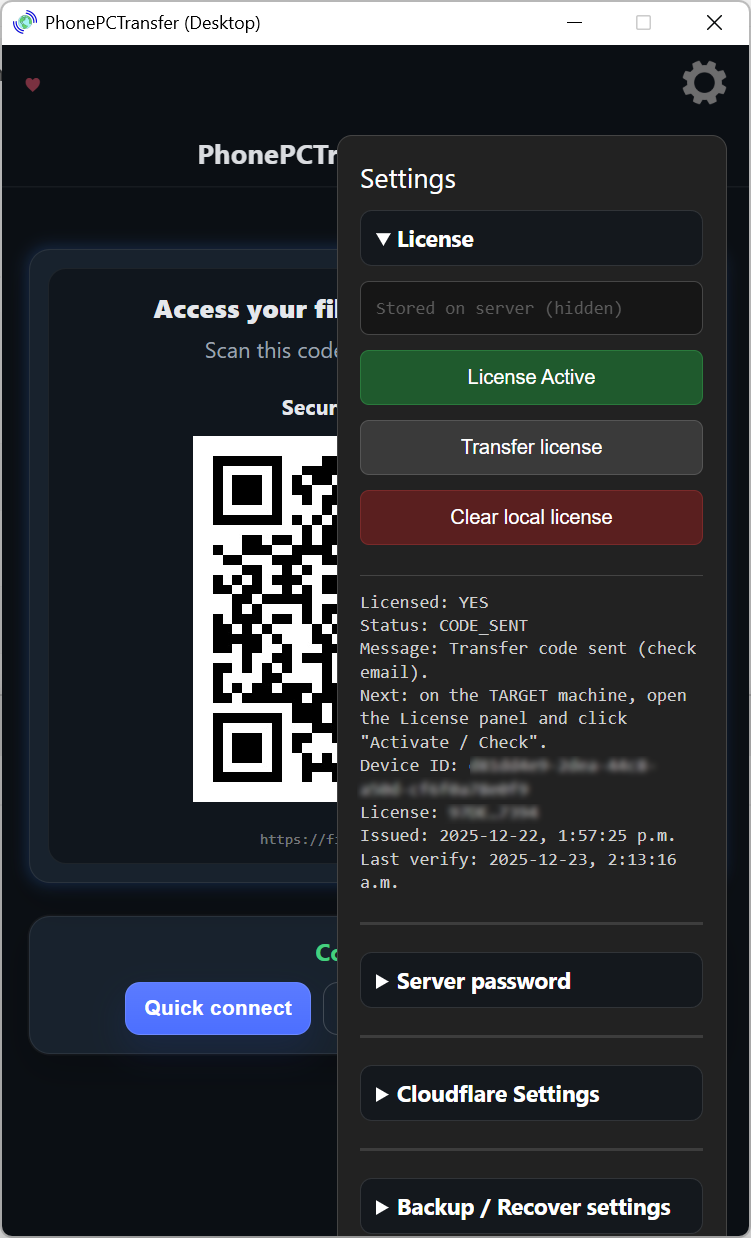
The settings panel is the control center for the desktop side. This is where you manage licensing, server password, Cloudflare options, backups, drive access, notifications, and logs.
- License handles activation and transfer.
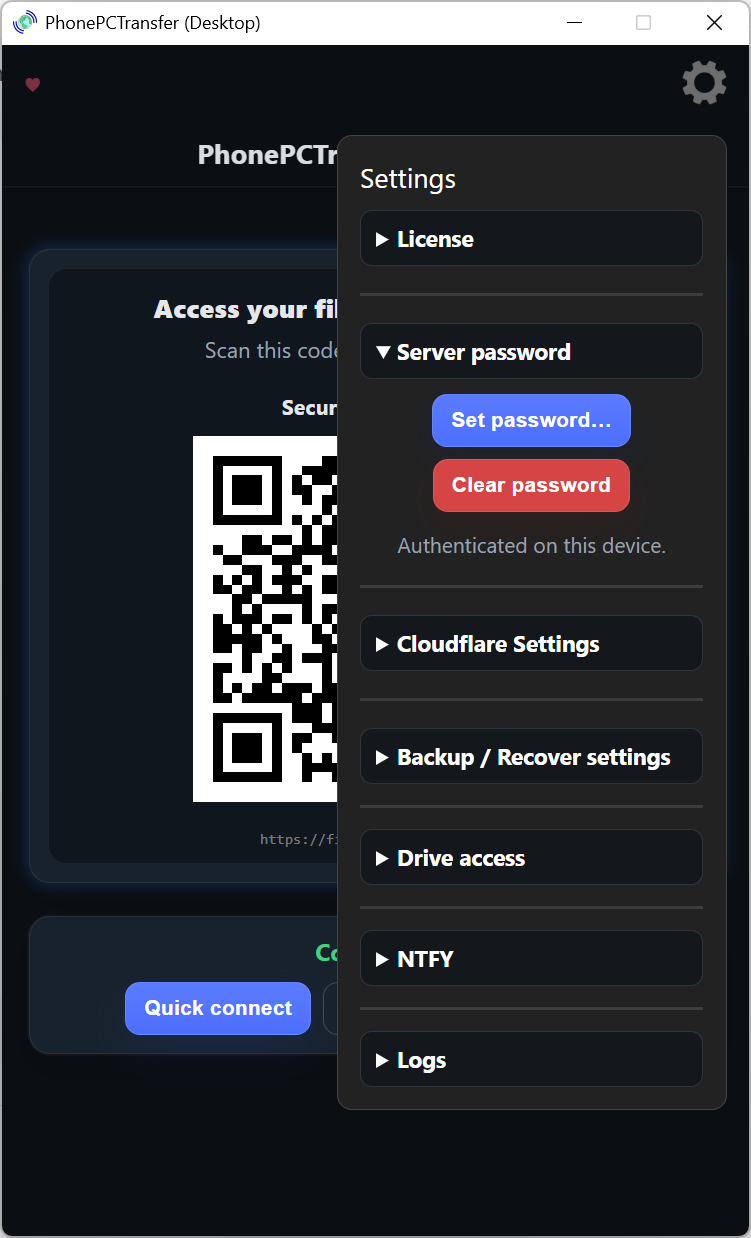
- Server password adds an extra layer before access is granted.
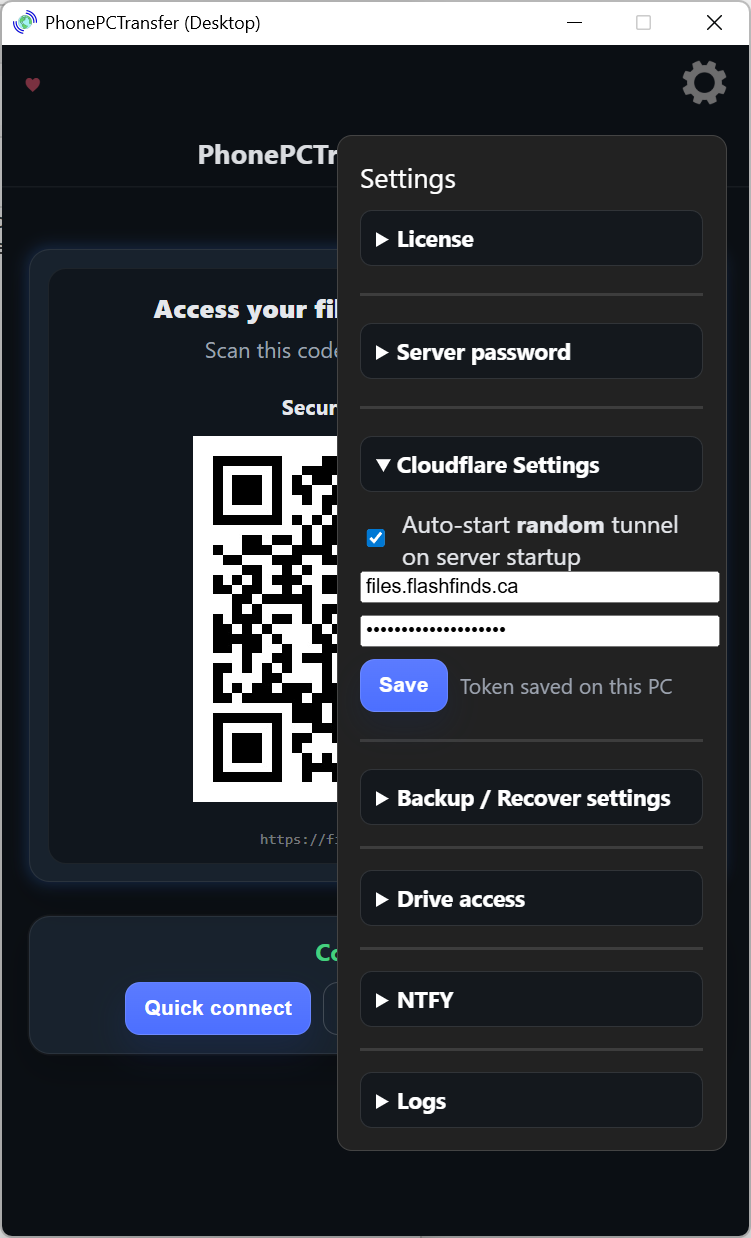
- Cloudflare settings supports custom remote connection setup.
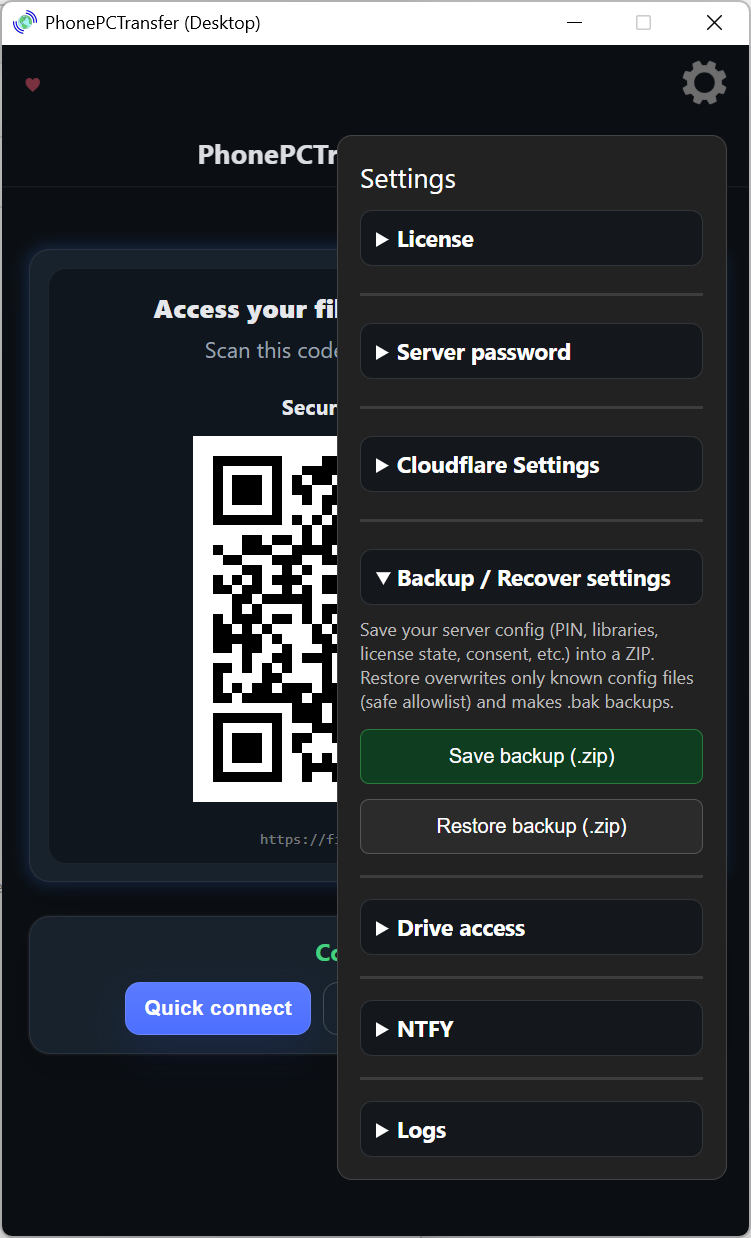
- Backup / Recover settings lets you save and restore your server configuration.
- Drive access controls what the phone app is allowed to browse.
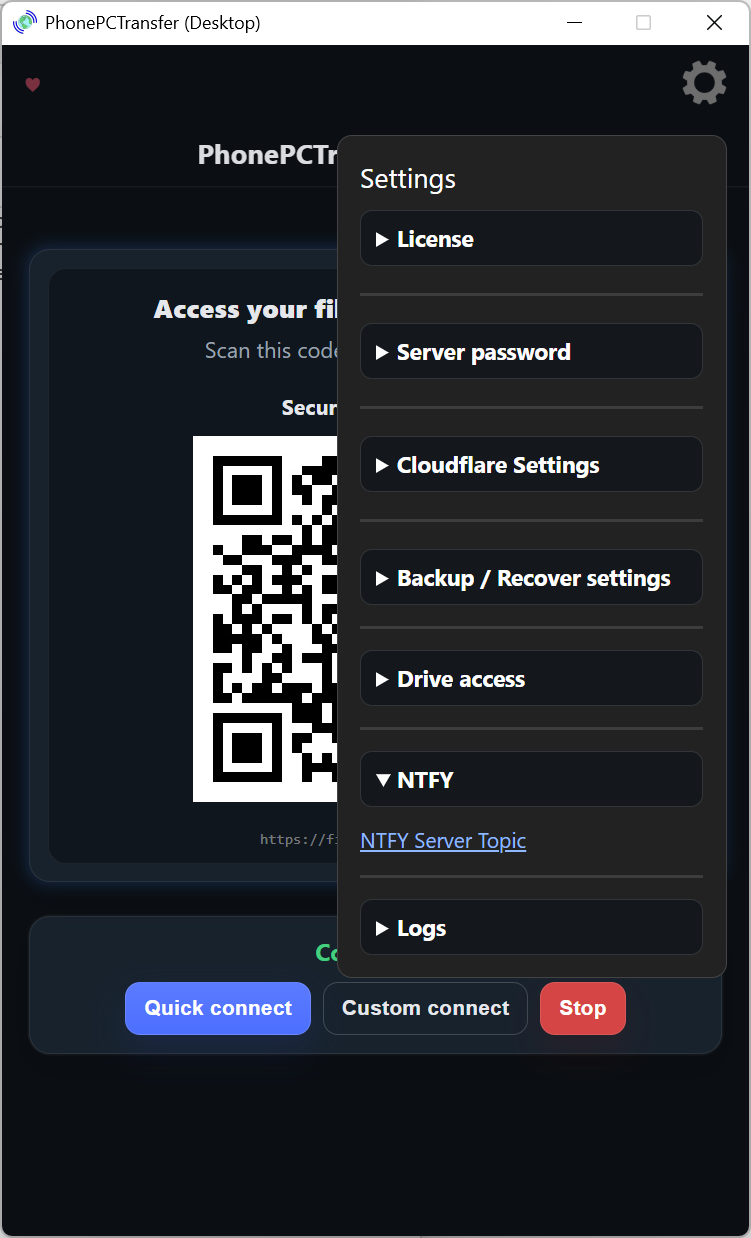
- NTFY helps the app get updated connection info when needed.
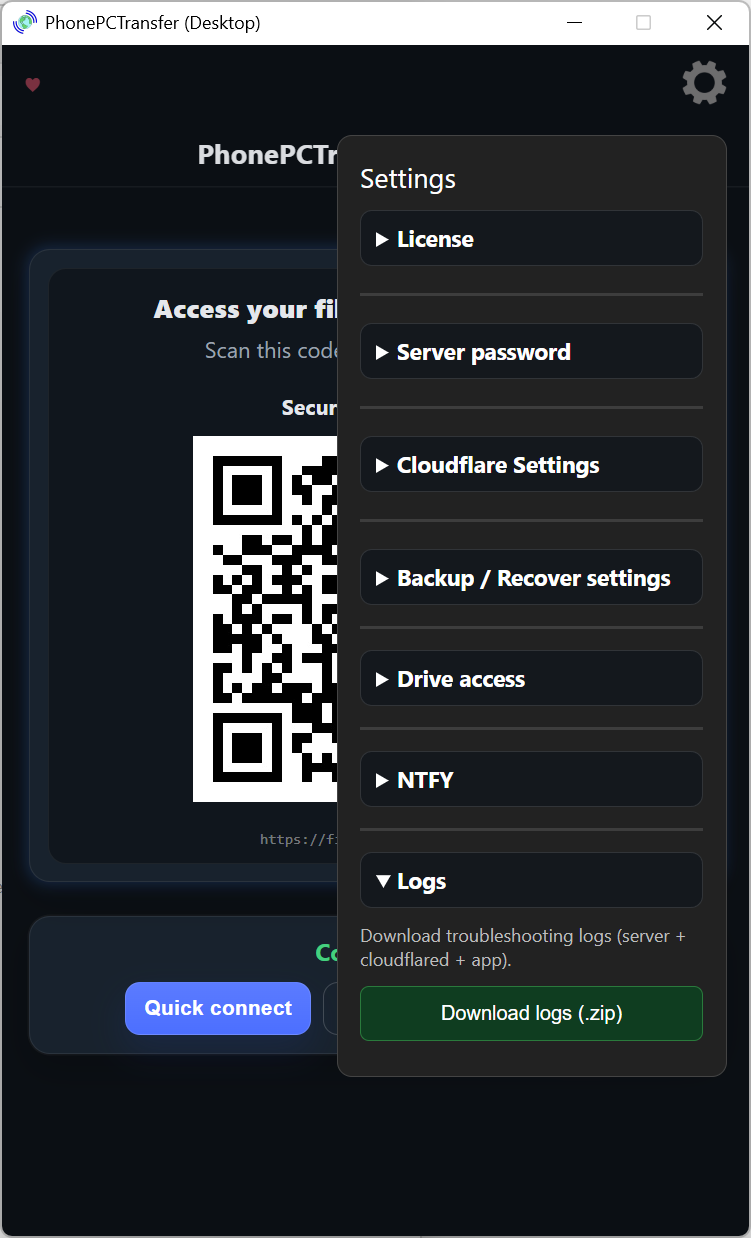
- Logs gives you downloadable troubleshooting information.
Security and access
Choose what the phone can reach
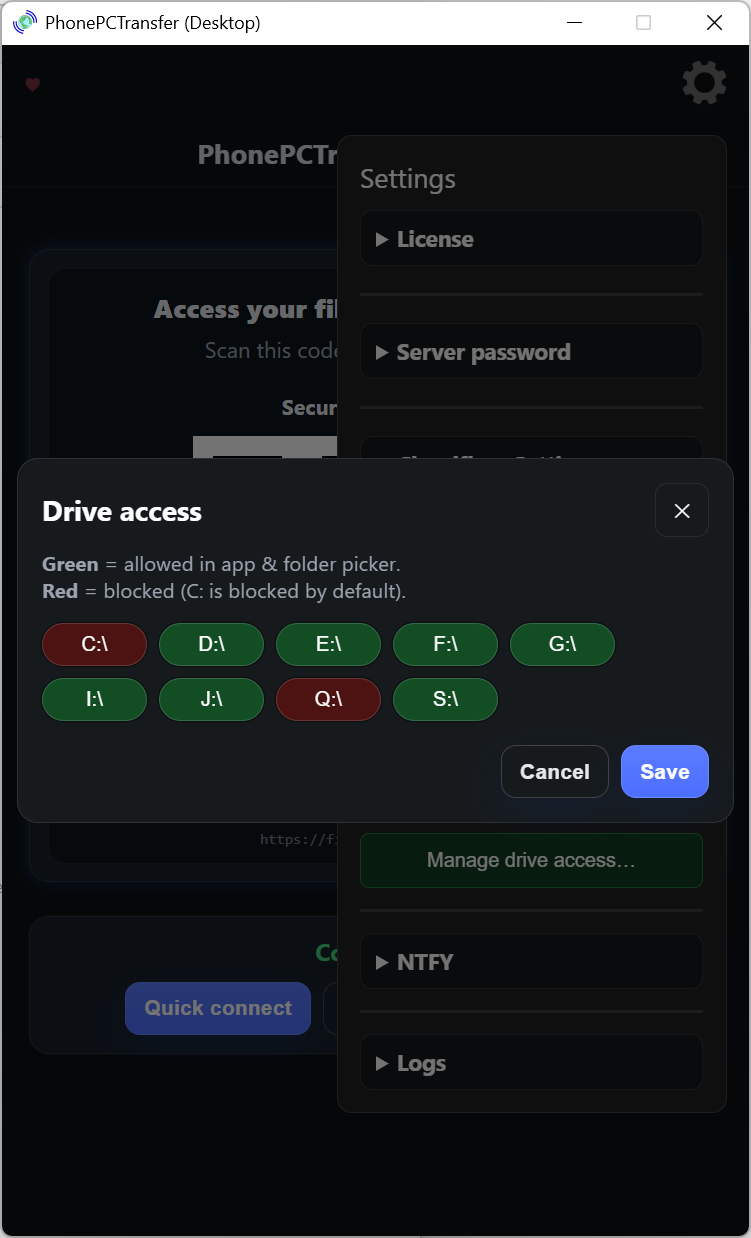
The desktop server lets you protect access with a password and control which drives or folders the phone app is allowed to browse.
- Server password can be required after the QR scan before access is granted.
- Drive access controls what appears in the app and in the folder picker.
- Safer defaults keep sensitive locations like C: blocked unless you explicitly allow them.
Remote access and recovery
Support custom remote connection and connection updates
If you want more than local LAN access, the desktop side also supports custom remote connection settings and notification updates used by the phone app when connection details change.
- Cloudflare settings lets you save your own custom connection details on the PC.
- Custom server name can be used instead of a random connection name.
- NTFY provides a server topic the phone app can use to receive fresh connection info.
Backup and troubleshooting
Save your setup and pull logs when needed
The desktop server can save your configuration to a ZIP, restore it later, and generate troubleshooting logs when you need to check what happened.
- Backup saves your config, library choices, and related settings.
- Restore brings known configuration files back from a saved ZIP.
- Logs packages server, cloudflared, and app logs for troubleshooting.
License
Activate and manage the desktop server on your PC
Licensing is handled from the desktop side, where you can activate, verify, transfer, and clear the local license when moving to another machine.
- Activation and check confirms the server is licensed and ready.
- Transfer license helps when you move the server to another machine.
- Status details shows verification, timestamps, and device information.
Ready to set up the PC side?
Start the desktop companion server and unlock full file access from your phone.
Download